
There are a lot of ways to translate on a Mac. You can hit a shortcut to translate whatever text you've selected, translate a whole web page in your browser, or just use what macOS already ships with.
This guide compares eight translation apps and tools for Mac on price, workflow, and what they can handle, with picks for writing emails and messages, reading foreign-language sites, and pulling text out of images.
Quick recommendations by use case
- Translate selected text anywhere on your Mac: macOS built-in translation, DeepL, Nani, or Easydict
- Write emails and messages in another language: Nani, ChatGPT, or Claude
- Proofread emails and messages before sending them: Nani or DeepL
- Read foreign-language web pages and PDFs: Immersive Translate
- Use a translation tool for free: macOS built-in translation, Google Translate, or Easydict
- Translate screenshots and text in images: Bob or Nani
- Work offline: macOS built-in translation
- Keep input out of AI training: Nani, DeepL Pro, or macOS built-in translation with Improve Siri & Dictation turned off
These aren't ranked best to worst. They're grouped so you can see what each one is built for.
Comparison table
| App or tool | Price | Selected text | Web pages | Images / OCR | Best for |
|---|---|---|---|---|---|
| macOS built-in translation | Free | Yes | Yes | Yes | On-device and Live Translation |
| DeepL | Free / from ~$9/mo* | Yes | No | Yes | Fast, natural-sounding translation |
| Nani | Free / from $8/mo | Yes | Yes | Yes | Multiple options with notes on nuance |
| Google Translate | Free | Yes | Yes | Yes | Broad language support |
| Immersive Translate | Free / Pro subscription | Yes | Yes | No | Bilingual web page and PDF reading |
| Bob | Free / one-time purchase | Yes | No | Yes | Fast selected-text translation and OCR |
| Easydict | Free and open source | Yes | No | Yes | Comparing results from multiple engines |
| ChatGPT / Claude | Free / from $20/mo | No | No | Yes | Translation with detailed instructions |
* DeepL's free character limit changes often (more on that below).
Is your input used for AI training?
Sending text to a server isn't the same thing as that text being used to train AI. Here's what each provider's own documentation says about consumer plans.
| App or tool | Use for training or service improvement | Notes |
|---|---|---|
| macOS built-in | Yes, if you opt in | If Improve Siri & Dictation is enabled, samples from Translate may be used to improve language features |
| DeepL | Yes on Free, no on Pro | Free input and translations may be used to improve DeepL's neural networks and algorithms |
| Nani | No on both Free and Pro | Neither Nani nor its AI providers use input or translations for model training |
| Google Translate | No clear exclusion for the free service | Google talks about using data to improve its services, but doesn't spell out whether Translate input is used for training |
| Immersive Translate | Depends on the selected translation engine | Whatever engine you pick, like DeepL or OpenAI, sets the policy |
| Bob | Depends on the selected translation engine | The policy of the translation service used by each plugin applies |
| Easydict | Depends on the selected translation engine | Handling varies between Apple Translate, Google, DeepL, LLM providers, and other engines |
| ChatGPT | Yes on consumer plans unless you opt out | On both free and paid consumer plans, turn off Improve the model for everyone to opt out |
| Claude | Yes on Free and paid consumer plans if you opt in | Only chats you've allowed to be used for model improvement, with an exception for conversations flagged for safety review |
* Based on official information available on July 13, 2026. Business plans and APIs may handle data differently.
How to choose a translation app for Mac
Are you reading or writing?
Machine translation tools like DeepL and Google Translate are fast, which is what you want when you just need to know what something says.
Tools built on large language models are slower, but they pick up on context. They can shift the tone or offer a second way to phrase something, and they'll tell you why they landed on a particular word. That matters when someone else is going to read what you wrote, like an email or a chat message.
Plenty of apps now do both, so the line isn't sharp. Still, it's worth asking which side you spend more time on.
The formats you need to cover
- Text selected in any Mac app
- Web pages and PDFs
- Screenshots and text in images
- Emails, messages, and other text you're writing
- FaceTime or phone conversations
Not every app handles every format, so check the table above against what you actually translate.
How quickly can you open it?
If you're translating all day, shortcuts and menu bar access matter more than you'd expect. If it's mostly websites, a browser extension or the translation built into Safari and Chrome will be less hassle.
Free tiers, and where your text goes
Free plans differ mostly in character limits and daily caps. And it's worth repeating: sending text to a server, storing it there, and training a model on it are three different things.
If you're translating work documents or anything with personal information in it, find out where your text goes and whether it's kept. The table above covers the training question.
macOS built-in translation (Live Translation)
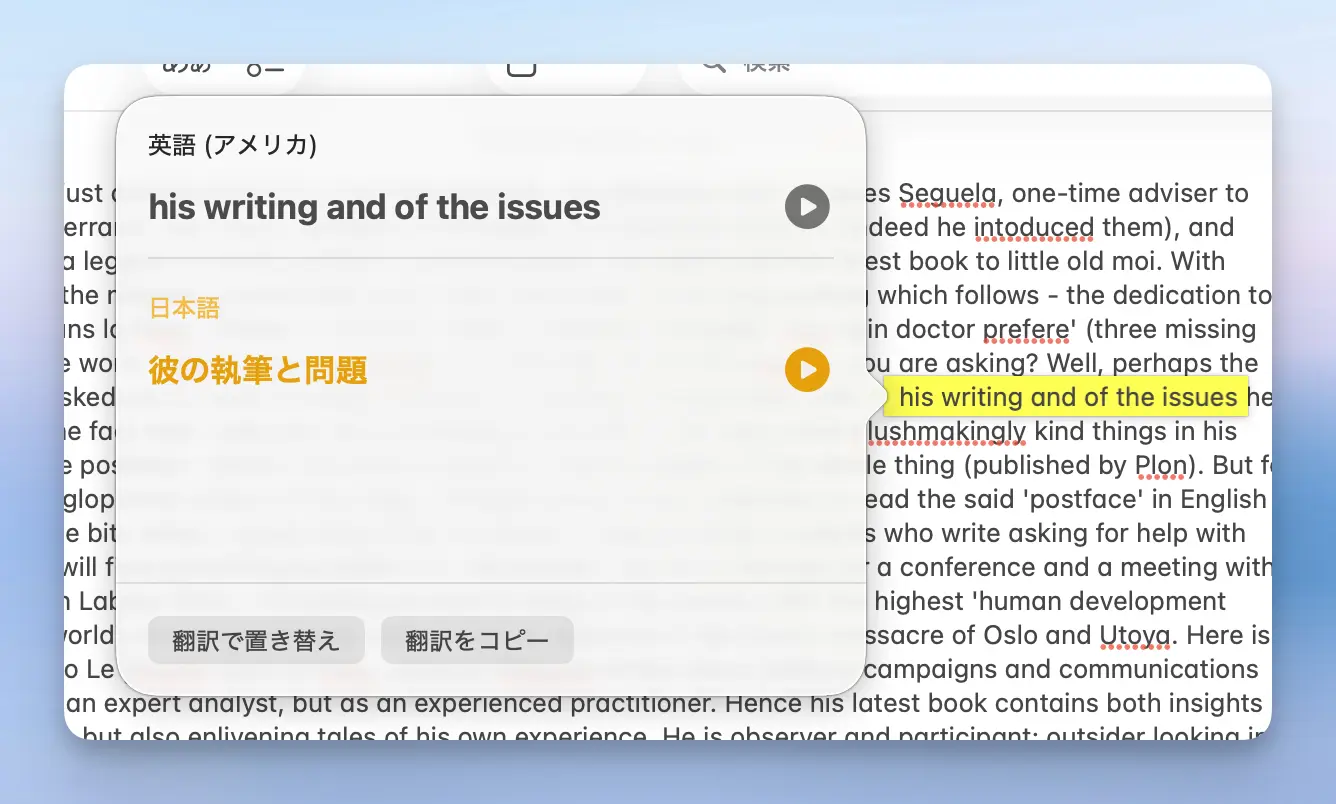
Completely free / Built into macOS
If you just want basic translation without installing anything, start here. Select text, right-click, choose "Translate." Safari can translate a whole page too.
Starting with macOS Tahoe (26), Apple Intelligence adds Live Translation. Messages can show incoming texts with a translation underneath, and macOS 26.1 added live call translation in FaceTime and the Phone app.
What the built-in features do well
- Free and already installed
- On-device mode keeps your text off external servers
- Safari makes full-page translation easy
Where the built-in features fall short
- Wording often comes out flat and literal
- Live Translation needs an Apple Intelligence-capable Mac with Apple silicon
- Language support is limited, especially for live calls
It's also the safe pick if your company blocks outside translation services.
Nani
Free plan / Pro from $8 per month / Mac and Windows apps + Web
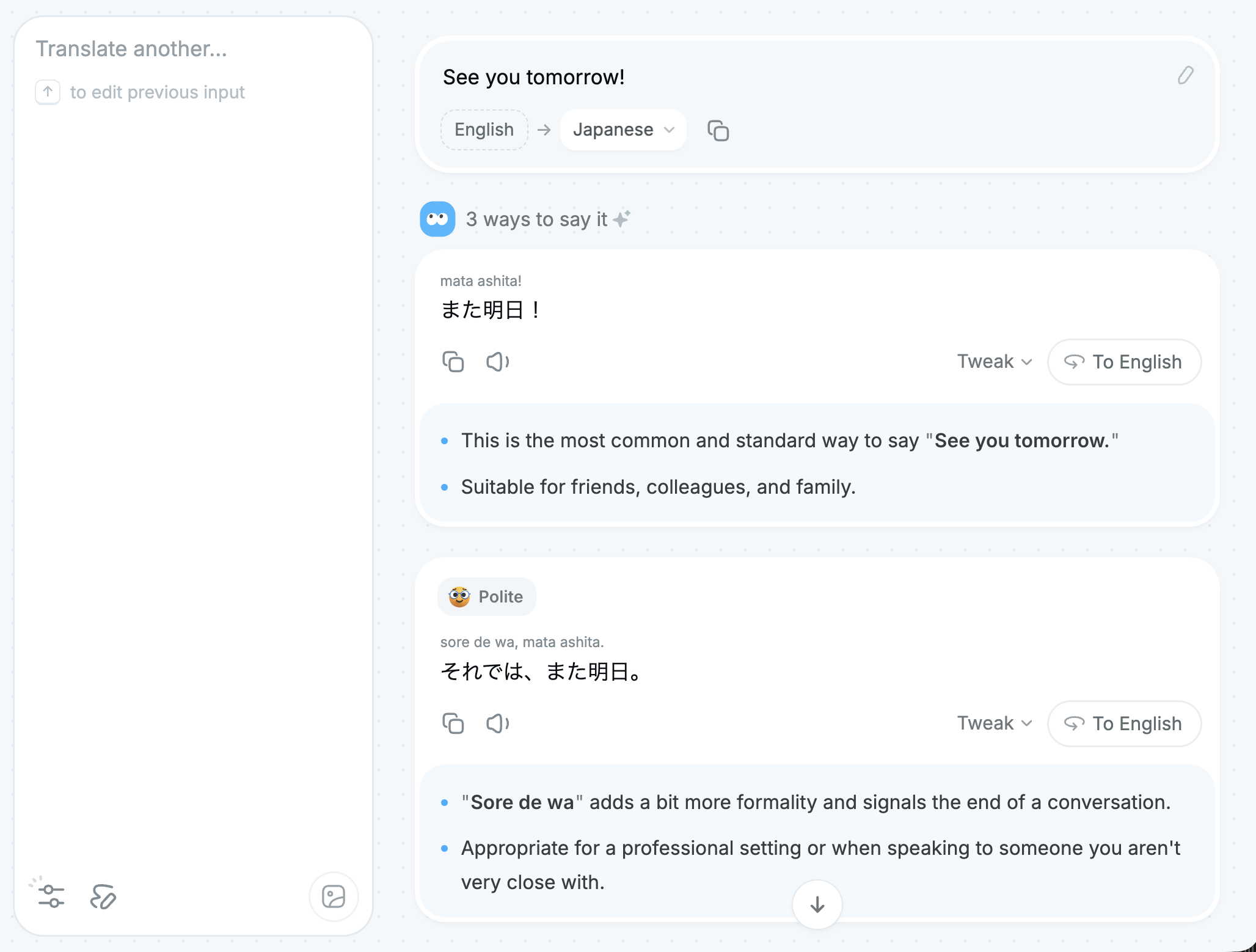
Nani is the AI translation app we develop. It's built for both reading and writing in another language: instead of handing back one translation, it suggests several phrasings and explains how each one lands.
A result might give you a casual version and a formal one, with a note on when each fits. So you get a better read on the original, and you can pick the version you're comfortable actually sending.
Nani also includes a proofreading mode for checking grammar, awkward wording, and tone. In the Mac app, you can select text in another app and start proofreading with a shortcut you set yourself.
What Nani does well
- Suggests multiple translations with notes on nuance and tone
- One-tap back-translation, so you can check what your translated text actually says
- Select text anywhere and translate it with a shortcut
- Proofread text you select in any app with a shortcut
- Screenshot translation, image translation, and web page translation (just paste a URL)
- Lets you write a reply directly from a translation result
- Translation history is stored on your device, not on a server
- Input and translation results are not used to train AI models on either Free or Pro
Where Nani falls short
- No mobile app yet
- Long texts take a while to finish (results stream in as they're generated, so you're not staring at a blank screen)
- Doesn't work offline
- The Mac app requires Apple silicon and macOS 14 or later
- Not built for bulk-processing large batches of documents
The free plan handles up to 4,000 characters per translation with no expiration. Pro is $10 per month ($8 per month if billed annually) and adds higher-accuracy models and long texts up to 100,000 characters.
DeepL
Free plan / Pro from around $9 per month / Menu bar app
DeepL is one of the best-known translation services, and it's especially good at polished, business-style writing.
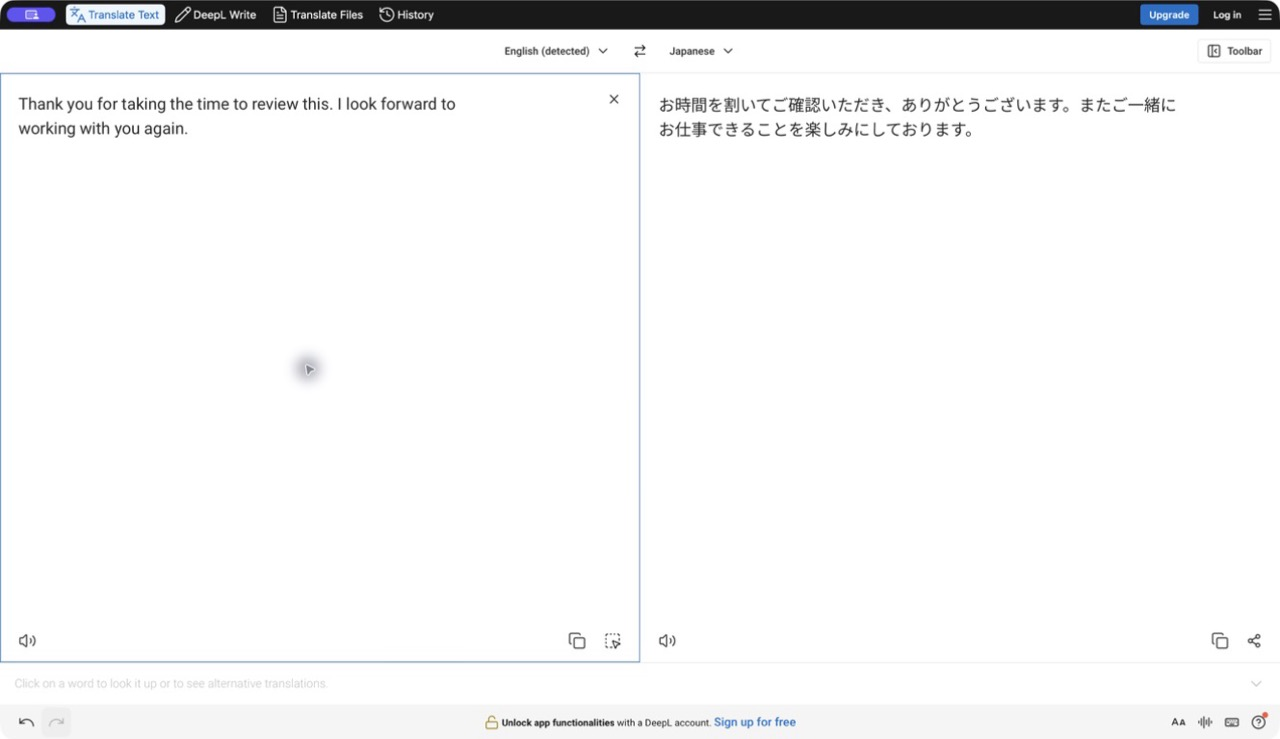
In the Mac app, you select text and press ⌘C twice, and a translation window pops up right there. The ⌘C⌘C trick is a big part of why people stick with it.
What DeepL does well
- Consistent results for polished and business-style writing
- "⌘C⌘C" translates selected text instantly
- Results appear almost immediately
- DeepL Write proofreads and rewrites your text, and it works on the free plan too
Where DeepL falls short
- The free tier keeps getting tighter. At the time of writing it's 1,500 characters per translation without an account, and 5,000 if you log in (these numbers change often)
- With long texts, it sometimes silently drops entire sentences. For anything important, check the output against the original
Pro removes the character limit and adds document translation and glossaries.
Google Translate
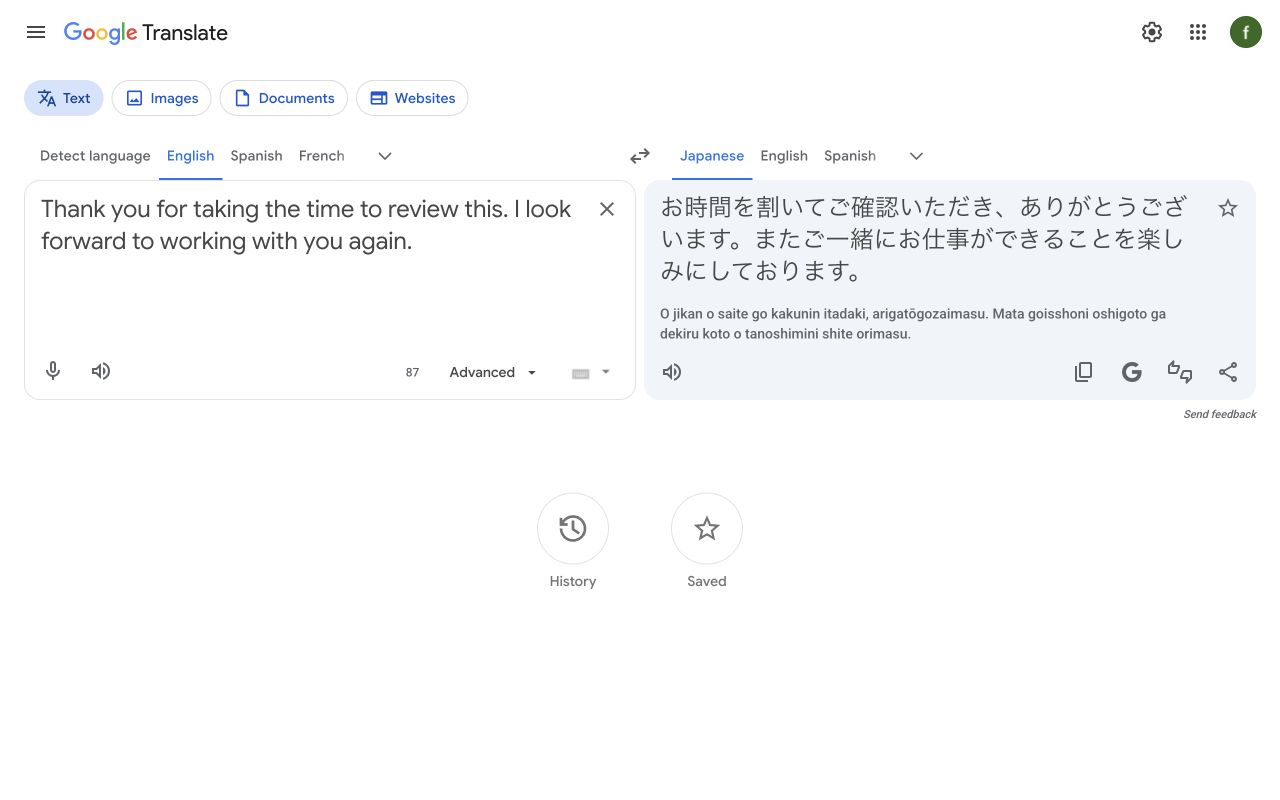
Completely free / Web + Chrome extension
There's no official Mac app. You use translate.google.com or Chrome's built-in translation and extensions.
What Google Translate does well
- Supports over 240 languages, including many that have limited support elsewhere
- Completely free, with generous usage limits
- In Chrome, right-click and choose "Translate" to translate an entire page
Where Google Translate falls short
- No official Mac app
- The output tends to be stiffer and more literal than DeepL or LLM-based tools
It's great for getting the gist of something fast. If wording and tone matter, run the result past DeepL or an LLM-based tool before you send it.
Immersive Translate
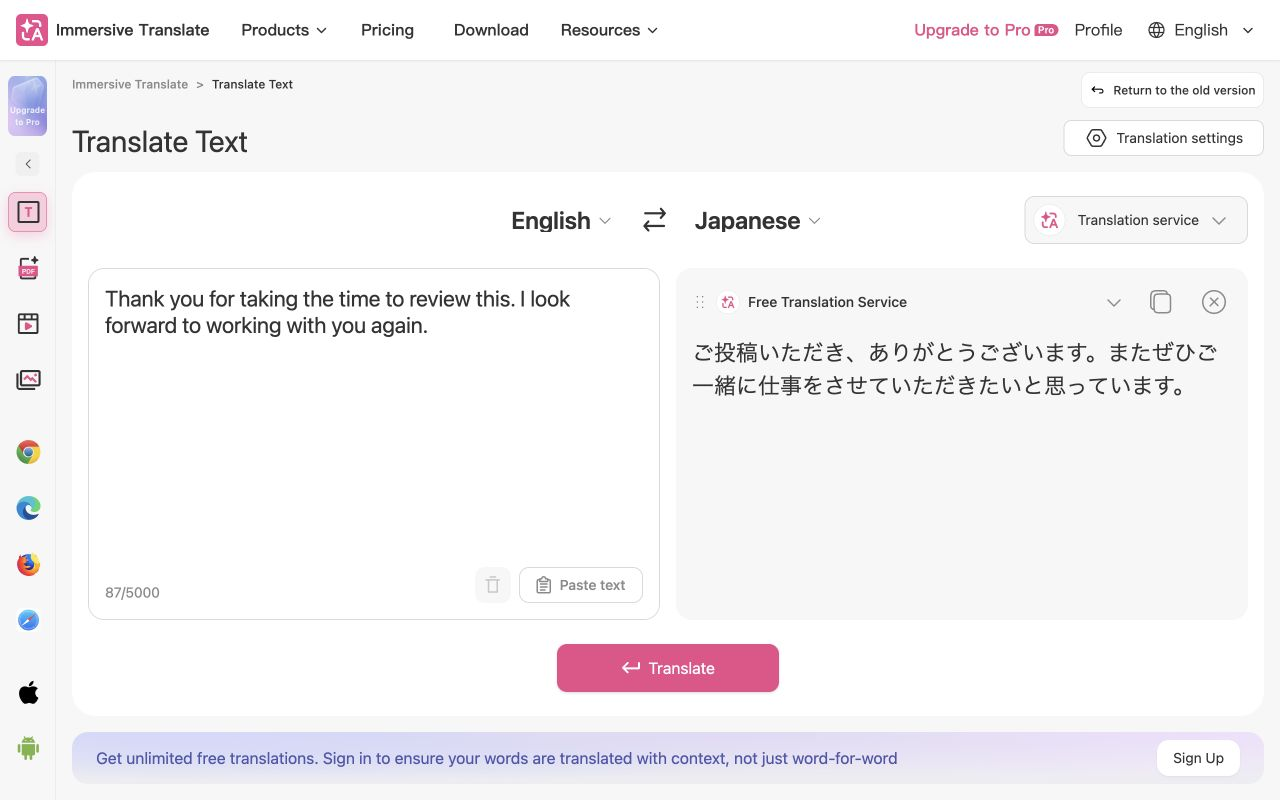
Free plan / Pro subscription / Browser extension
A browser extension built around bilingual reading. Translate a page and the translation gets inserted under each original paragraph, so you read both at once.
What Immersive Translate does well
- Original and translation side by side, so when a translation looks off you can check the source right there
- Works on PDFs, EPUBs, and YouTube subtitles as well as web pages
- Lets you pick the translation engine. With your own API key you can use DeepL or OpenAI models
Where Immersive Translate falls short
- Lots of settings, so initial setup takes some effort
- The free default engine is just okay. For real quality you'll want Pro or your own API key
Worth it if you read a lot of articles and docs in other languages.
Bob
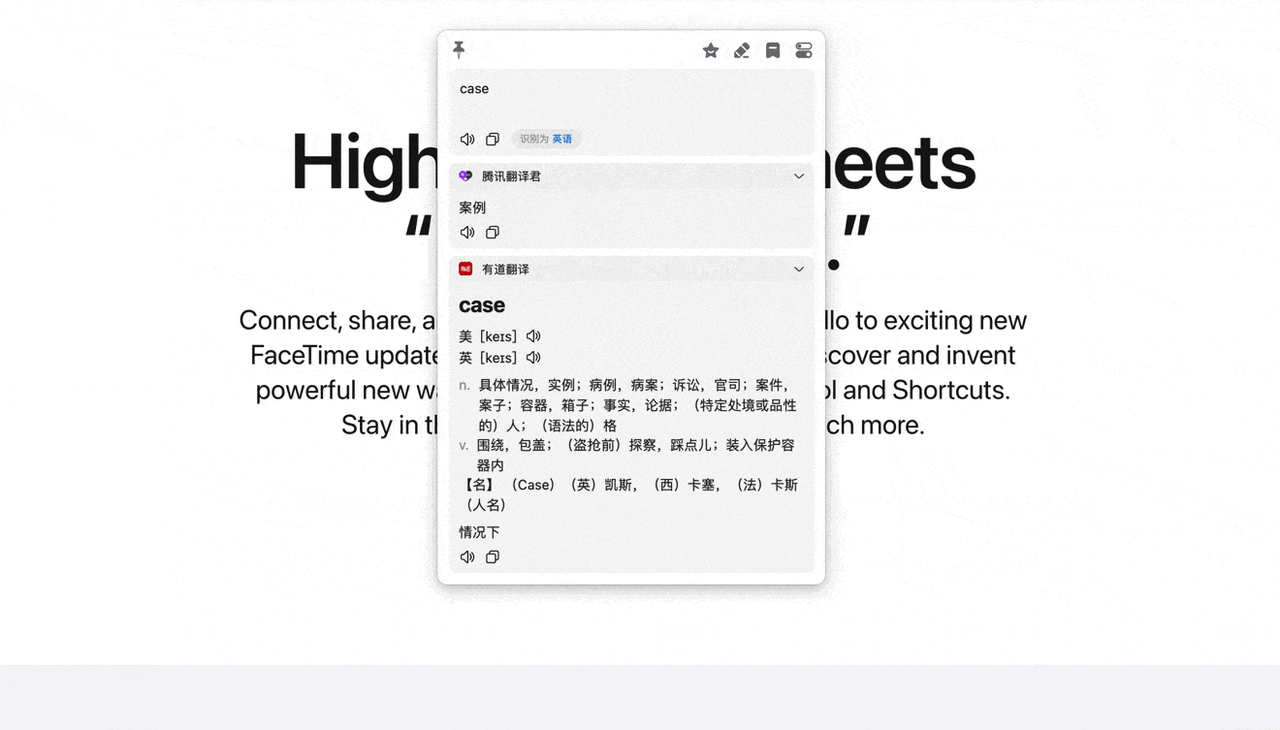
Free with daily limits / One-time purchase / Menu bar app
A long-running translation and OCR app from an independent developer. Day to day it feels a lot like the DeepL app: select text, hit a shortcut (⌥D by default), get a translation.
What Bob does well
- Select-to-translate, typed input, and screenshot translation are all fast
- Strong OCR. Select part of your screen with
⌥Sand it translates the text in the image - A plugin system lets you mix and match translation engines
- One-time purchase (the App Store version unlocks Pro via in-app purchase)
Where Bob falls short
- Documentation and community discussion are mostly in Chinese
- The free tier caps how many translations you can run per day
- Some engines require you to bring your own API key
Easydict
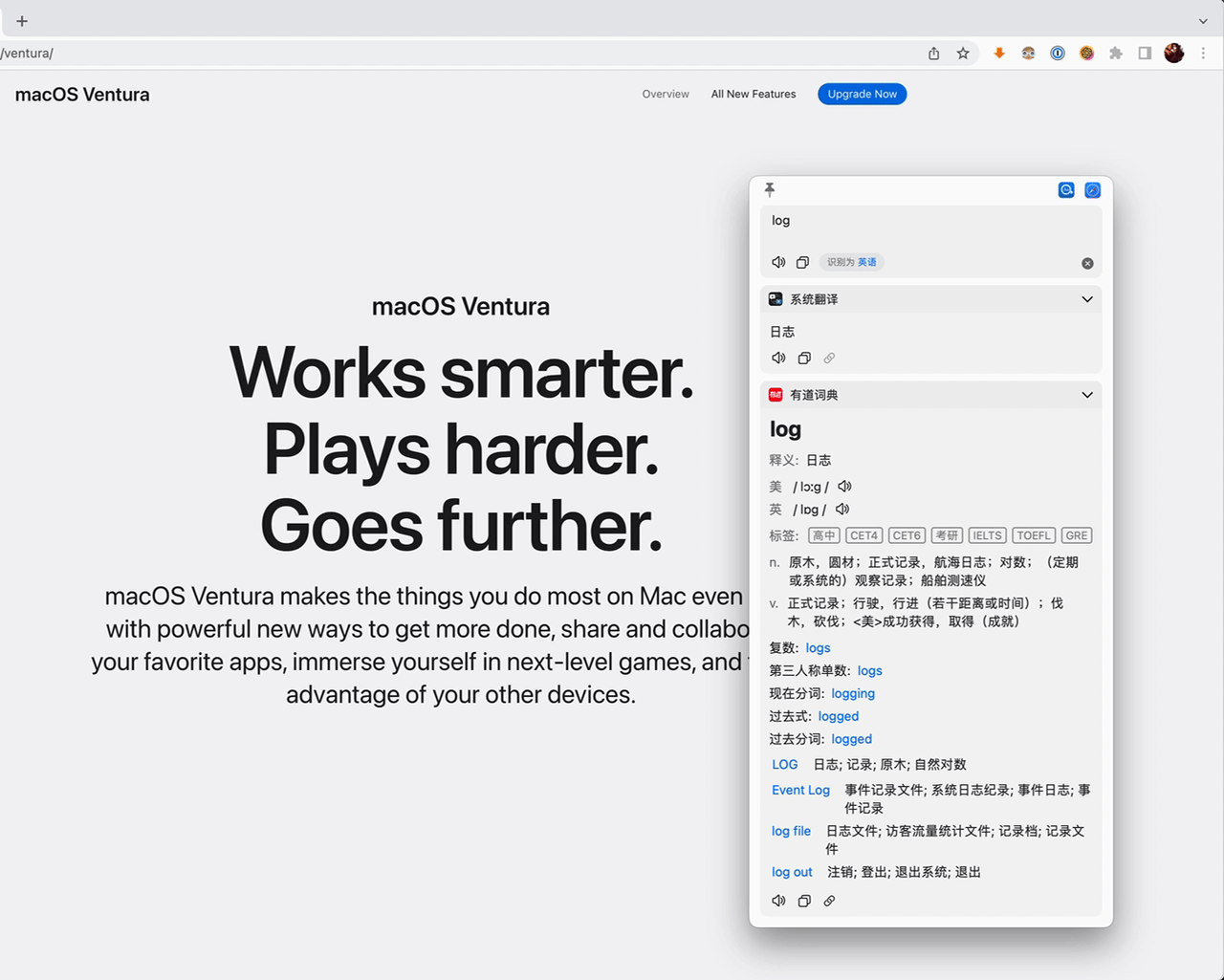
Completely free / Open source / Menu bar app
An open-source dictionary and translation app inspired by Bob. It's packed with features and still actively developed.
What Easydict does well
- Completely free and open source
- Shows results from multiple engines (Apple Translate, Google, DeepL, Youdao, and more) side by side on one screen
- Can also line up LLMs like OpenAI and Gemini if you configure them
- Covers all the essentials: select-to-translate, typed input, screenshot OCR, and dictionary lookups via the system dictionary
Where Easydict falls short
- Most documentation is in Chinese or English only
- Using LLM engines requires setting up API keys, which takes a bit of technical comfort
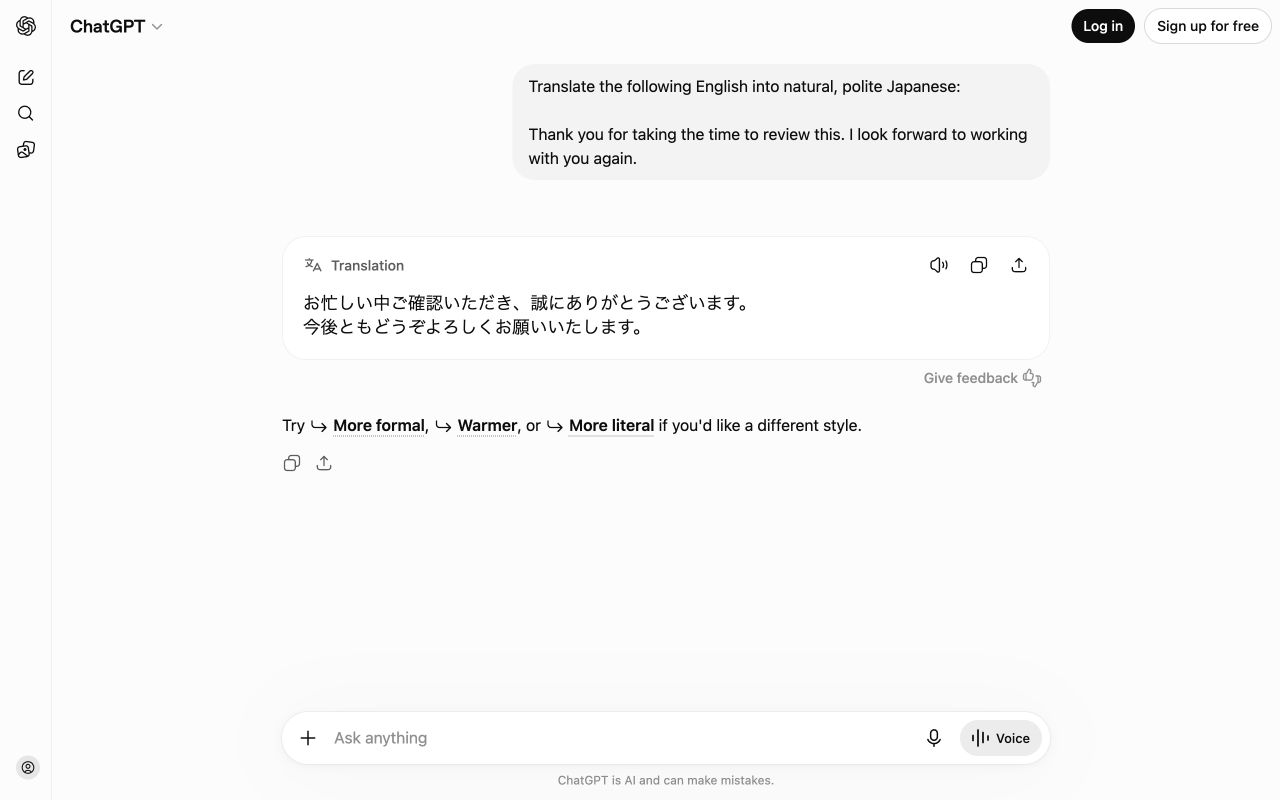
Translating with ChatGPT or Claude
Free plan / Paid from around $20 per month
Not translation apps, strictly speaking, but plenty of people now do all their translating in a general-purpose AI chatbot.
What AI chatbots do well
- You can specify any context or condition you want: "as an apology email to a client", "in the style of a medical paper", "always translate this term this way"
- You can refine a translation by giving detailed context and constraints
- The ChatGPT Mac app can be summoned from anywhere with
⌥Space
Where AI chatbots fall short
- There's no dedicated translation flow, so you type "translate this into French" every single time
- Tone variations and back-translation also have to be requested manually, every time
- The more you translate, the more that friction adds up
Apps like Nani run on the same kind of model, but with the translation workflow already built in.
A few more options
- Mate Translate: Known for its Safari extension and Netflix subtitle translation. Moved from a one-time purchase to a subscription
- Translate Tab: A simple one-time-purchase menu bar app with a loyal following
- Raycast translation extensions: Call Google Translate, DeepL, Easydict and others straight from the launcher. Great if you live on the keyboard
Which app for which job
- You write a lot of emails and chat replies in another language → Nani or ChatGPT. Tone control and back-translation checks make a real difference
- You read a lot of foreign-language articles and docs → Immersive Translate, plus one select-to-translate app (Nani, DeepL, or Easydict) for spot checks
- You want to spend nothing → macOS built-in + Google Translate + Easydict. For light use, that combination covers everything
- You need to work offline → macOS on-device translation. Check that its supported languages and features match your needs
- You don't want your input used for AI training → Nani, DeepL Pro, or macOS built-in translation with Improve Siri & Dictation turned off
Most people end up with two: one they hit a shortcut for all day, and one for the jobs it doesn't cover. Everything here has a free tier, so give a couple of them a week of real work and see which one you stop thinking about.